Close all internet browes and proceed to your menu bar as follows:
Go to Applications --> Accessories --> Terminal
Once the terminal is open, paste in the following code:
sudo apt-get install nspluginwrapper flashplugin-nonfree
Press the enter key --> type your password when prompted --> complete the install
Restart your browser and all should be well.
If you run into any problems Click Here!
Thursday, January 29, 2009

Wednesday, January 14, 2009
BleachBit
BleachBit deletes unnecessary files to free valuable disk space, maintain privacy, and remove junk. Rid your system of old clutter including cache, temporary files, cookies, and broken shortcuts. Designed for Linux systems, it wipes clean Bash, Beagle, Epiphany, Firefox, Flash, Java, KDE, OpenOffice.org, Opera, RealPlayer, rpmbuild, VIM, XChat, and more.
Install BleachBit in Ubuntu
Install BleachBit in Ubuntu
Download the .deb package from here or use the following command
Blogged with the Flock Browser
Saturday, January 10, 2009
How to Install Mozilla Prism in Ubuntu
Prism is a simple XULRunner-based browser that hosts web applications without the normal web browser user interface. Prism is based on a concept called Site-Specific Browsers (SSB). An SSB is designed to work exclusively with a single web application. It doesn’t have the menus, toolbars and other accoutrements of a traditional web browser. An SSB also offers tighter integration with the operating system and desktop than a typical web application running through a web browser. Applications running in an SSB are therefore able to benefit from many of the advantages of the desktop and of the web at the same time.
Benefits
Separate process: Web apps can hog memory or processor cycles or even bring down the whole browser in extreme cases. By running each app in its own process, we minimize the impact of any mishaps. We can also benefit from operating system tools that less us view the memory/CPU consumption of a specific application.
Minimal user interface: A general-purpose browser UI is not necessary or appropriate for most web apps. It is more efficient to provide a UI that is specific to the application. This also cuts down on UI clutter (hence the term distraction-free browser).
Basic desktop integration: Support of desktop features can make using the app more natural and convenient for end users. This includes the ability to create desktop shortcuts, to place the application icon in the tray or dock and to display pop-up notifications.
Customization: Apps can be run using a shared browser runtime and customized using client-side script (similar to Greasemonkey).
Custom stylesheets can be used to tweak the UI.
Available Prism Packages in Ubuntu 8.04
prism-facebook
prism-google-analytics
prism-google-calendar
prism-google-docs
prism-google-groups
prism-google-mail
prism-google-reader
prism-google-talk
prism-twitter
Install Prism packages for google using the following command
sudo aptitude install prism-google-talk prism-google-mail prism-google-docs prism-facebook prism-google-analytics
You can install all the packages mentioned above.This will complete the prism packages installation.
You need to make sure that you have installed flash plugin for firefox otherwise google apps won’t work.
sudo aptitude install flashplugin-nonfree
Thursday, January 1, 2009
Happy New Year!
2008 has come and gone (thank God). There have been many changes for me; Boss and co-workers fired unexpectedly, major updates to Ubuntu, a stable release (non-beta) of timekpr, family deaths, economic problems and now the first black president for the USA. Phew, what a year it's been. Well I'm ready to get on with things and welcome 2009. I'm really grateful I'm still employed with all the economic downfalls as of late. I'm really looking forward to Ubuntu 9.04 and my tax return. I hope everyone reading this blog has a happy new year full of promise and rewards. Bye for now.
Blogged with the Flock Browser
Tuesday, December 9, 2008
OpenOffice 3.0 PPA is up a working again
A few entries ago, I posted information on how to upgrade to Open Office 3.0. Then suddenly the repository went off-line and it didn't work anymore. I'm glad to report that as of yesterday, the repository is back online and notified me of updates. The updates worked great on the systems that were updating from Open Office 2.4, but where 3.0 was already installed there were conflicts and a partial upgrade was offered but didn't work. To fix the issue I have to remove Open Office from the computer and then reinstall. After that everything was working perfect. I enabled the repositories again on the other computers and all is well.
Blogged with the Flock Browser
Sunday, December 7, 2008
Intrepid Ibex Install & timekpr b5
Toady I had to rebuild one of the systems in my house. It was one that the kids use extensively so of course timekpr is normally installed on that system. I took the opportunity to upgrade that system to Intrepid Ibex after installing a new HDD, and wireless adapter. Enough of the small talk, here's the news.
I downloaded and installed timekpr b5 and all was well. I then decided to add the Intrepid repository from Even's PPA and to my surprise there were updates for timekpr. I installed the updates and I now have b5+ installed on that system and it's working beautifully.
I filed a bug report against timekpr today. I found that when you are logged in as an administrator or as an unrestricted user, the timekpr status keeper gives a countdown to log off (midnight). I feel like this shouldn't be the case for any unrestricted users. timekpr should simply report No Restrictions or some such phrase, so a new bug report was filed.
I downloaded and installed timekpr b5 and all was well. I then decided to add the Intrepid repository from Even's PPA and to my surprise there were updates for timekpr. I installed the updates and I now have b5+ installed on that system and it's working beautifully.
I filed a bug report against timekpr today. I found that when you are logged in as an administrator or as an unrestricted user, the timekpr status keeper gives a countdown to log off (midnight). I feel like this shouldn't be the case for any unrestricted users. timekpr should simply report No Restrictions or some such phrase, so a new bug report was filed.
Blogged with the Flock Browser
Saturday, December 6, 2008
Timekpr Version 0.2.2 is released!
This program will track and control the computer usage of your user accounts. You can limit their daily usage based on a timed access duration and configure periods of day when they can or cannot log in. With this application, administrators can limit account login time duration or account access hours.
DEVELOPMENT:
- This program is heavily depended on Linux-PAM and its time and access modules.
- Beta 5 has been released, and now supports Ubuntu, Kubuntu & Xbuntu version 8.04 and 8.10 - Special thanks to .nedberg for this much anticipated release.
- If you would like to contribute to the code, join the timekpr-maintainers team on launchpad.
- Current status indicated below:
- Ubuntu Hardy: Works
- Ubuntu Intrepid: Works
- Kubuntu Hardy KDE3: Works
- Kubuntu Interpid KDE4: Works
- Xubuntu Hardy: Works
HISTORY & CREDITS:
- This project was born after Charles Jackson's (crjackson) request for a program that time-limits user accounts:
Ubuntu Forums. You can also find a progression of the history posted at the Bucknasty. blog.
- This is a complete re-write in python and vast improvement from the original timekpr bash script:
Waggledance.
- Even Nedberg initially began to improve the original bash script from Chris Jackson. Savvas Radević packaged it and soon began co-development.
- Special thanks go to Charles Jackson (crjackson), who has contributed a lot by suggesting, brainstorming useful features, writing the initial blueprint, and
being the primary tester.
- We would also like to thank all the people posting to that topic in ubuntu forums for their comments.
Additional Information
Developers Even Nedberg and Savvas Radević (or .nedberg and forger) of the Ubuntu forums have rewritten the package using python as opposed to the bash shell script of it's previous form. timekpr now has a full featured interface with the ability to change and grow as needed. The beta 3 release adds support for both KDE and Xfce versions of Ubuntu 8.04 & 8.10.
I have requested an additional feature of a black-out setting that would let you slice a chunk of time right out of the normally allowable login hours. This would be for designated home work time, or other required activities. Please bookmark this page for future updates.
I have requested an additional feature of a black-out setting that would let you slice a chunk of time right out of the normally allowable login hours. This would be for designated home work time, or other required activities. Please bookmark this page for future updates.
- Charles
INSTRUCTIONS
Download the deb file and double click on it to install. Configure your users, click apply and then quit when done. Just remember to check back here to always get the latest version available.
Intrepid Ibex Users should install by adding Even's PPA repository to there software sources list, and then use your package manager to install. This will always give you the latest version and keep your system updated.
Stable repository:
deb http://ppa.launchpad.net/timekpr-maintainers/ppa/ubuntu intrepid main
deb-src http://ppa.launchpad.net/timekpr-maintainers/ppa/ubuntu intrepid main
Development repository:
deb http://ppa.launchpad.net/nedberg/ppa/ubuntu intrepid main
deb-src http://ppa.launchpad.net/nedberg/ppa/ubuntu intrepid main
Intrepid Ibex Users should install by adding Even's PPA repository to there software sources list, and then use your package manager to install. This will always give you the latest version and keep your system updated.
Stable repository:
deb http://ppa.launchpad.net/timekpr-maintainers/ppa/ubuntu intrepid main
deb-src http://ppa.launchpad.net/timekpr-maintainers/ppa/ubuntu intrepid main
Development repository:
deb http://ppa.launchpad.net/nedberg/ppa/ubuntu intrepid main
deb-src http://ppa.launchpad.net/nedberg/ppa/ubuntu intrepid main
Prior to installation, you must Un-install any previous versions by running the code below in a terminal session.
sudo dpkg --purge timekprSunday, November 16, 2008
Install audio and video codecs - Ubuntu Intrepid Ibex
Open up a terminal (applications -> accessories -> terminal) and copy/paste this code:
---------------------------------------------------------------------------------------------
sudo wget http://www.medibuntu.org/sources.list.d/intrepid.list -O /etc/apt/sources.list.d/medibuntu.list && wget -q http://packages.medibuntu.org/medibuntu-key.gpg -O- | sudo apt-key add - && sudo apt-get update && sudo apt-get install -y ubuntu-restricted-extras non-free-codecs w32codecs totem-mozilla libdvdcss2 libdvdnav4 totem-xine xine-ui libdmx1 libxine1 libxine1-ffmpeg libxinerama1 libdvdread3
---------------------------------------------------------------------------------------------
---------------------------------------------------------------------------------------------
sudo wget http://www.medibuntu.org/sources.list.d/intrepid.list -O /etc/apt/sources.list.d/medibuntu.list && wget -q http://packages.medibuntu.org/medibuntu-key.gpg -O- | sudo apt-key add - && sudo apt-get update && sudo apt-get install -y ubuntu-restricted-extras non-free-codecs w32codecs totem-mozilla libdvdcss2 libdvdnav4 totem-xine xine-ui libdmx1 libxine1 libxine1-ffmpeg libxinerama1 libdvdread3
---------------------------------------------------------------------------------------------
HOW TO: UPGRADE to Open Office to 3.0 on INTREPID IBEX
$ sudo gedit /etc/apt/sources.list
Copy to the end of your sources.list
## Openoffice.org
deb http://ppa.launchpad.net/openoffice-pkgs/ubuntu intrepid main
deb-src http://ppa.launchpad.net/openoffice-pkgs/ubuntu intrepid main
Then open a terminal and run:
$ sudo apt-get update && sudo apt-get upgrade
I had to run my update manager afterward to get ALL updates.
Thats it.
Copy to the end of your sources.list
## Openoffice.org
deb http://ppa.launchpad.net/openoffice-pkgs/ubuntu intrepid main
deb-src http://ppa.launchpad.net/openoffice-pkgs/ubuntu intrepid main
Then open a terminal and run:
$ sudo apt-get update && sudo apt-get upgrade
I had to run my update manager afterward to get ALL updates.
Thats it.
Blogged with the Flock Browser
Sunday, November 2, 2008
Intrepid 8.10 on my Laptop
Yesterday I installed Intrepid Ibex on my laptop. I'm not thrilled because of the ATI video driver being kind of slow, but it's okay otherwise so far. I guess I'll get used to it for 6 months or so until the Jackrabbit comes out. It's hard to give it a fair test with a cruddy video driver. It's not really Ubuntu's fault that ATI didn't provide full support fot x.org 7.4 but the end result is a less than thrilling experience. At the end of the day, it's working well, it just FEELS less responisive. 3D games play fine however. I wish OpenOffice 3.0 had been installed by default, I guess I'll have to make that happen myself. I read that it was listed in backports but that just isn't the case. I'll probably add the PPA for openoffice and install from there. I pop back in and let you know what I've decided to do.
Blogged with the Flock Browser
Sunday, October 12, 2008
Nasty Windows XP
Today I had the displeasure of re-installing WindowsXP-Pro on my main system. This system has 4 HD's so I keep a copy around for a couple of programs I can't do without (DVDFab5 & Sony Vegas). It took me ALL DAY to get windows installed because of my SATA HD's. Windows SP3 won't recognize my nVidia Nforce4 SATA controller. Somewhere in the process I messed up the drive and ended up downloading WD's DataLifeguard CD ISO. Using that I was able to prepare the drive and install Windows again. At one point, I thought I had killed the drive. To test it out, I formated ot ext3 and Ubuntu installed with no problems. Only crappy windows couldn't work. What's worse was I even tried Vista and it too was a no go. Well, thanks to the WD tools I got it all sorted out, but it ruined my Sunday.
Blogged with the Flock Browser
Saturday, October 11, 2008
Permissions problem after fresh install
I recently did a clean install of Ubuntu Hardy 8.04.1 and got all my updates. All was perfect except somehow my permissions in my home folder got borked. Well, not really somehow! I figured out how I screwed it all up. I was trying to restore all my saved email (thunderbird) and in doing so (by saving to an NTFS partition) all the settings in my backup files required root permissions. Well I got all that sorted out but I also messed up the permissions to some hidden files too. Long story short, it all seems to be working now, but I should have archived the files in a tar.gz file rather than copying them to the NTFS partition. Achariving would have preserved the permissions. In my blinde efforts to fix the problem, I reset permissions on everything in the home folder. It's all working now, but I'm sure some things aren't quite the way they should be. I was going to start from scratch again, but it's not worth it since everything seems to be working well now.
Blogged with the Flock Browser
Sunday, September 21, 2008
Timekeepr - Keep control of computer usage
This program will track and control the computer usage of your user accounts. You can limit their daily usage based on a timed access duration and configure periods of day when they can or cannot log in. With this application, administrators can limit account login time duration or account access hours.
DEVELOPMENT:
- This program is heavily depended on Linux-PAM and its time and access modules.
- Beta 5 has been released, and now supports Ubuntu, Kubuntu & Xbuntu version 8.04 and 8.10 - Special thanks to .nedberg for this much anticipated release.
- If you would like to contribute to the code, join the timekpr-maintainers team on launchpad.
- Current status indicated below:
- Ubuntu Hardy: Works
- Ubuntu Intrepid: Works
- Kubuntu Hardy KDE3: Works
- Kubuntu Interpid KDE4: Works
- Xubuntu Hardy: Works
HISTORY & CREDITS:
- This project was born after Charles Jackson's (crjackson) request for a program that time-limits user accounts:
Ubuntu Forums. You can also find a progression of the history posted at the Bucknasty. blog.
- This is a complete re-write in python and vast improvement from the original timekpr bash script:
Waggledance.
- Even Nedberg initially began to improve the original bash script from Chris Jackson. Savvas Radević packaged it and soon began co-development.
- Special thanks go to Charles Jackson (crjackson), who has contributed a lot by suggesting, brainstorming useful features, writing the initial blueprint, and
being the primary tester.
- We would also like to thank all the people posting to that topic in ubuntu forums for their comments.
Additional Information
Developers Even Nedberg and Savvas Radević (or .nedberg and forger) of the Ubuntu forums have rewritten the package using python as opposed to the bash shell script of it's previous form. timekpr now has a full featured interface with the ability to change and grow as needed. The beta 3 release adds support for both KDE and Xfce versions of Ubuntu 8.04 & 8.10.
I have requested an additional feature of a black-out setting that would let you slice a chunk of time right out of the normally allowable login hours. This would be for designated home work time, or other required activities. Please bookmark this page for future updates.
I have requested an additional feature of a black-out setting that would let you slice a chunk of time right out of the normally allowable login hours. This would be for designated home work time, or other required activities. Please bookmark this page for future updates.
- Charles
INSTRUCTIONS
Download the deb file and double click on it to install. Configure your users, click apply and then quit when done. Just remember to check back here to always get the latest version available.
Intrepid Ibex Users should install by adding Even's PPA repository to there software sources list, and then use your package manager to install. This will always give you the latest version and keep your system updated.
Stable repository:
deb http://ppa.launchpad.net/timekpr-maintainers/ubuntu intrepid main
deb-src http://ppa.launchpad.net/timekpr-maintainers/ubuntu intrepid main
Development repository:
deb http://ppa.launchpad.net/nedberg/ubuntu intrepid main
deb-src http://ppa.launchpad.net/nedberg/ubuntu intrepid main
Intrepid Ibex Users should install by adding Even's PPA repository to there software sources list, and then use your package manager to install. This will always give you the latest version and keep your system updated.
Stable repository:
deb http://ppa.launchpad.net/timekpr-maintainers/ubuntu intrepid main
deb-src http://ppa.launchpad.net/timekpr-maintainers/ubuntu intrepid main
Development repository:
deb http://ppa.launchpad.net/nedberg/ubuntu intrepid main
deb-src http://ppa.launchpad.net/nedberg/ubuntu intrepid main
Prior to installation, you must Un-install any previous versions by running the code below in a terminal session.
sudo dpkg --purge timekprBlogged with the Flock Browser
Okay, I,m testing the Flock Browser for my Bolggin Needs
This is a test of the Flock Browser. If this works out, I'll be removing "ScribeFire" from Firefox 3 and using this. I haven't have much luck lately with ScribeFire sooo... I hope this works out. Well it seems to work very well so far. Not much choice in font sizes and control, the the blog site itself is limited. When using ScribeFire I have lots of choices in font contro, the only problem is that the Blog Site doesn't accept them properly and that's been causing problems. I would prefer to be limited by my blogging application in a manner that reflects the capabilities of the actual posting site. At least the bolg won't look messed up when some one views it.
I'll be blogging more today about the progress of Timekeeper. It has come a long way and need a new blog post to reference. I'll explain more on that later.
I'll be blogging more today about the progress of Timekeeper. It has come a long way and need a new blog post to reference. I'll explain more on that later.
Friday, September 5, 2008
timekpr.sh - Limit Daily Desktop Usage in Ubuntu
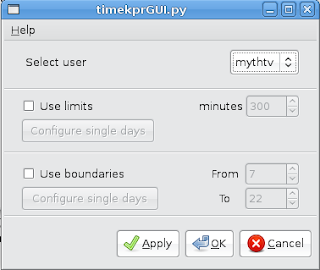
NEW GUI VERSION
Here is the install script: install_timekpr.sh - Download the script to your desktop, open up a terminal and paste the following into the terminal. cd Desktop (remember to use a capital 'D') sudo bash install_timekpr.sh
This script will make sure you have the latest version. You still need to edit /etc/rc.local and add /usr/local/bin/timekpr.sh & to make the script run at boot. The GUI should be self explanatory, but here is a short how-to:
Select the user you wish to configure
- Check "Use limits" if you want to use timed limits
a) Set the "Every day" limit or
b) Check "Configure single days" and set different limits for every day of the week - Check "Use boundaries" if you want to control when the user can log in
a) Set the "Every day" boundaries or
b) Check "configure single boundaries" and set different boundaries for every day of the week - Click "Apply" if you want to configure another user, OK if you are finished or Cancel to just exit.
To Un-Restrict a user, select the username, uncheck both "Use limits" and "Use boundaries" and click Apply/OK

Blogged with the Flock Browser
Tuesday, August 19, 2008
How to Limit Daily Desktop Usage in Ubuntu
This is not my script but I'm placing it here for me and my family to reference. It comes from another blog called "Waggle Dance" The link to that bog is posted on the left hand side of this page under "My Links". All credit for the following scripts go to the author of the original timekpr.txt, and to Ubuntu Forums member .nedberg for making the modifications and additional two scripts I requested in this thread.
Here's the original content.
I have been looking for a way to limit the amount of time my kids spend on the computer. After toying with a couple of different things like timeoutd and pam_time, I decided to hack together something to meet my needs:
It’s pretty rough right now ( just a couple of hours of research and bash hacking ) but it just kicked my son of the PC after his alloted hour and a half, so it’s functional - YMMV - I need to allow for different time limits on the weekends, and it uses a less than elegant method for
shutting down gnome-session, so it’s very much a work in progress.
Lets make sure you have the notifier libs installed so that you can get the nice graphical notifications that your user is about to be kicked to the curb. Open up a terminal and paste this:
sudo apt-get install libnotify-bin
To install it, down load the script, timekpr , and rename it. Copy it someplace useful and make it executable:
mv timekpr.txt timekpr.sh
chmod 755 timekpr.sh
sudo mv timekpr.sh /usr/local/bin
Next make a directory for the time tracking files and limits:
sudo mkdir /var/lib/timekpr
I added a line to /etc/rc.local
/usr/local/bin/timekpr.sh &
to start the script after a re-boot.
To limit someone’s per day usage, just add the number of seconds they will be allowed to a file in /var/lib/timekpr
sudo -i
echo 7200 > /var/lib/timekpr/username
where username is the account you want to time limit.
Here's the original content.
I have been looking for a way to limit the amount of time my kids spend on the computer. After toying with a couple of different things like timeoutd and pam_time, I decided to hack together something to meet my needs:
- My kids share a PC with their Mom using fast-user-switching, so I needed it to keep track of multiple sessions.
- I needed different times for different users ( Mom wouldn’t be toothrilled with me forcing her to log off after an hour or two )
- I wanted everyone to get ample warning so they could save their work and logout cleanly.
With those ideas in mind I came up with this:
timekpr - (Modified - this is not the creator's original version)
What timekpr does is watch for instances of the session manager, keep a running tally of the time they are running, and logs kills it when time is up. Several libnotify alerts let the user know when thier time is running out.

It’s pretty rough right now ( just a couple of hours of research and bash hacking ) but it just kicked my son of the PC after his alloted hour and a half, so it’s functional - YMMV - I need to allow for different time limits on the weekends, and it uses a less than elegant method for
shutting down gnome-session, so it’s very much a work in progress.
Lets make sure you have the notifier libs installed so that you can get the nice graphical notifications that your user is about to be kicked to the curb. Open up a terminal and paste this:
sudo apt-get install libnotify-bin
To install it, down load the script, timekpr , and rename it. Copy it someplace useful and make it executable:
mv timekpr.txt timekpr.sh
chmod 755 timekpr.sh
sudo mv timekpr.sh /usr/local/bin
Next make a directory for the time tracking files and limits:
sudo mkdir /var/lib/timekpr
I added a line to /etc/rc.local
/usr/local/bin/timekpr.sh &
to start the script after a re-boot.
To limit someone’s per day usage, just add the number of seconds they will be allowed to a file in /var/lib/timekpr
sudo -i
echo 7200 > /var/lib/timekpr/username
where username is the account you want to time limit.
IMPORTANT UPDATE - NEW VERSION
This is a new version and needs a new config file for each userername located at:
/var/lib/timekpr/username
To use the new script, login to a terminal with root permissions and delete the old script AND all the old user configuration files and REBOOT your system. Then install the new script and create all new username config files. Then paste the settings (as shown below) into the newly created confg files. Reboot your system again, and the script should work it's magic provided you have added it to the: /etc/rc.local file as instructed above. If you don't create a configuration file for any user, they will have unrestricted access.
Each of the username files should have the following format:
limit=( 345 345 345 345 170 345 345 )
from=( 7 7 7 7 7 7 7 )
to=( 22 22 22 22 23 22 22 )
Each of the seven numbers on a line stands for the value of that certain day of week
(SUN--MON--TUE--WED--THR--FRI--SAT)
An unrestricted user does not need this file, so don't make one for yourself.
To start the script without rebooting, open up a terminal session and type:
$ bash /usr/local/bin/timekpr.sh
You need to be sure that libnotify is installed. Type the following code in a terminal session.
$ sudo apt-get install libnotify-bin
Here are the scripts - Notice the 2 extra scripts for added usefulness.
timekpr.txt
This is a modified version of the original. It lets you set additional time controls that prevent the user from being able to login outside of the allowable limits (7 & 22 by default) of 0700 & 2200 hours.
addtime.txt
This is a "rewards" script to give additional time to your well behaved little users. This script (when ran) is only effective for the day you run it. Run this script in the following format:
sudo addtime.sh
This does not expand the login hours regular boundaries of 0700-2200 hours.
extendlimits.txt
This script will allow you to set user privileges to extend beyond the default login boundaries of 0700 to 2200 hours. This is only effective for one session and will reset when the timekpr.sh script is next executed. To run this script, use the following format:
sudo extendlimits.sh
What's ahead?
.nedberg of the Ubuntu Forums is currently working on a GUI frontend for this script. Here is a preview of the work as it stands.
Saturday, August 16, 2008
Enemy Territory: Wolfenstein - Complete Install Guide for Hardy
Make sure that the driver to your 3D graphics card is properly installed and working by opening up a terminal and typing:
glxgears
Be sure your sourcelist is correctly set and download the relevant libs to Wolfenstein.
[Desktop Entry]
Name=Enemy Territory: Wolfenstein
Comment=Wolfenstein:
Enemy Territory is an online multi-player game, where the players
interact with each other over a network in two teams (Axis and Allies)
to defend or destroy mission objectives.
Exec=et
Icon=/usr/local/games/enemy-territory/ET.xpm
Terminal=false
Type=Application
Categories=Application;Game;
Then save (ctrl)+(o) and exit (ctrl)+(x)
glxgears
Be sure your sourcelist is correctly set and download the relevant libs to Wolfenstein.
sudo aptitude update && sudo aptitude safe-upgrade
sudo aptitude install libc6-i386 libgtk1.2
wget http://www.boundlesssupremacy.com/Cappy/getlibs/getlibs-all.deb
sudo dpkg -i getlibs-all.deb
INSTALLATION:
wget -c http://ftp.games.skynet.be/pub/wolfenstein/et-linux-2.60.x86.run
chmod +x et-linux-2.60.x86.run
sudo sh et-linux-2.60.x86.run
getlibs /usr/local/games/enemy-territory/et.x86
Build a Launcher in the Games Menu
sudo nano /usr/share/applications/etwolfenstein.desktop
Add the following;sudo aptitude install libc6-i386 libgtk1.2
wget http://www.boundlesssupremacy.com/Cappy/getlibs/getlibs-all.deb
sudo dpkg -i getlibs-all.deb
INSTALLATION:
Open the terminal and type;
cd ~/Desktopwget -c http://ftp.games.skynet.be/pub/wolfenstein/et-linux-2.60.x86.run
chmod +x et-linux-2.60.x86.run
sudo sh et-linux-2.60.x86.run
NOTE: It's important that you exit the installer window and do not press the installers play button. It will course permission problems for Wolfenstein.
Get any missing dependencies
getlibs /usr/local/games/enemy-territory/et.x86
Build a Launcher in the Games Menu
sudo nano /usr/share/applications/etwolfenstein.desktop
[Desktop Entry]
Name=Enemy Territory: Wolfenstein
Comment=Wolfenstein:
Enemy Territory is an online multi-player game, where the players
interact with each other over a network in two teams (Axis and Allies)
to defend or destroy mission objectives.
Exec=et
Icon=/usr/local/games/enemy-territory/ET.xpm
Terminal=false
Type=Application
Categories=Application;Game;
Then save (ctrl)+(o) and exit (ctrl)+(x)
Wolfenstein: Enemy Territory - no sound fix
The following is information I found by searching the internet for making the sound work in my WolfET installs. I found this information in 2 seperate forum posts and I take no credit for the accuracy of this information.
I have tried this on 3 different systems of mine, and it works on all 3. I have no idea why the commands in the first group do not match the second (i.e. sudo echo... vs sudo sh -c "echo...")
I personally used the 1st group when I tested and found it to work perfectly. The second group was found when I was looking a permanant fix (holds after reboot). I would guess they both do the exact same thing but use a slightly different command.
Older games like Wolf: Enemy Territory and Quake3 do not support ALSA (Advanced Linux Sound Architecture), the older games support OSS (Open Sound System) . The commands below direct the game to use OSS.
For WolfET
As root user (sudo -i) type:
sudo echo "et.x86 0 0 direct" > /proc/asound/card0/pcm0p/oss
For Quake3
As root user (sudo -i) type:
sudo echo "quake3.x86 0 0 direct" > /proc/asound/card0/pcm0p/oss
The commands I posted only effect the games. After I'm done with the game everything else works good like Gaim and Rhythmbox. The commands I posted are only good for that session, after a reboot, I have to re-enter commands.
Try type this on terminal
sudo sh -c "echo 'et.x86 0 0 direct' > /proc/asound/card0/pcm0p/oss"
sudo sh -c "echo 'et.x86 0 0 disable' > /proc/asound/card0/pcm0c/oss"
Then test the game. If sound works, you can apply this fix permanetly by typing in terminal:
sudo gedit /etc/rc.local
and add these lines end of file
echo 'et.x86 0 0 direct' > /proc/asound/card0/pcm0p/oss
echo 'et.x86 0 0 disable' > /proc/asound/card0/pcm0c/oss
exit 0
I have tried this on 3 different systems of mine, and it works on all 3. I have no idea why the commands in the first group do not match the second (i.e. sudo echo... vs sudo sh -c "echo...")
I personally used the 1st group when I tested and found it to work perfectly. The second group was found when I was looking a permanant fix (holds after reboot). I would guess they both do the exact same thing but use a slightly different command.
Older games like Wolf: Enemy Territory and Quake3 do not support ALSA (Advanced Linux Sound Architecture), the older games support OSS (Open Sound System) . The commands below direct the game to use OSS.
For WolfET
As root user (sudo -i) type:
sudo echo "et.x86 0 0 direct" > /proc/asound/card0/pcm0p/oss
For Quake3
As root user (sudo -i) type:
sudo echo "quake3.x86 0 0 direct" > /proc/asound/card0/pcm0p/oss
The commands I posted only effect the games. After I'm done with the game everything else works good like Gaim and Rhythmbox. The commands I posted are only good for that session, after a reboot, I have to re-enter commands.
Try type this on terminal
sudo sh -c "echo 'et.x86 0 0 direct' > /proc/asound/card0/pcm0p/oss"
sudo sh -c "echo 'et.x86 0 0 disable' > /proc/asound/card0/pcm0c/oss"
Then test the game. If sound works, you can apply this fix permanetly by typing in terminal:
sudo gedit /etc/rc.local
and add these lines end of file
echo 'et.x86 0 0 direct' > /proc/asound/card0/pcm0p/oss
echo 'et.x86 0 0 disable' > /proc/asound/card0/pcm0c/oss
exit 0
Friday, August 15, 2008
What is the equivalent of Ctrl-Alt-Del in Ubuntu
Press the Alt+PrntScrn(SysRq) keys and hold them down while you type each of the following keys in order: R-E-I-S-U-B
R switch the keyboard mode
E send all processes the SIGTERM singal
I sends all processes the SIGKILL signal
S Sync filesystem
U Unmount all devices
B reboots the system (typing O instead will turn the computer Off)
Theoretically you could just do Alt+SysRq+B to do an old school, Win 95 style Ctrl+Alt+Del reboot, but it’s just as bad as hitting that power button. Your best bet is to run the whole sequence to ensure that the system shuts down in the way it would normally shut down when you issue a reboot command.
And it’s almost guaranteed to work even on a completely locked up system. That is, if it’s enabled on your system. If you are not sure, do a really quick test right now:
cat /proc/sys/kernel/sysrq
If you see a 1, you are in good shape.
If you see a 0 (zero), you can enable the SysRq keys by doing:
sudo echo 1 > /proc/sys/kernel/sysrq
R switch the keyboard mode
E send all processes the SIGTERM singal
I sends all processes the SIGKILL signal
S Sync filesystem
U Unmount all devices
B reboots the system (typing O instead will turn the computer Off)
Theoretically you could just do Alt+SysRq+B to do an old school, Win 95 style Ctrl+Alt+Del reboot, but it’s just as bad as hitting that power button. Your best bet is to run the whole sequence to ensure that the system shuts down in the way it would normally shut down when you issue a reboot command.
And it’s almost guaranteed to work even on a completely locked up system. That is, if it’s enabled on your system. If you are not sure, do a really quick test right now:
cat /proc/sys/kernel/sysrq
If you see a 1, you are in good shape.
If you see a 0 (zero), you can enable the SysRq keys by doing:
sudo echo 1 > /proc/sys/kernel/sysrq
How to add the source of Ubuntu Tweak
No matter your Ubuntu is Feisty, Gutsy or Hardy, open your terminal, type the command to run gedit(or other editor in your opinion) to modify the sources.list:
sudo gedit /etc/apt/sources.list
And put the two line into it:
deb http://ppa.launchpad.net/tualatrix/ubuntu hardy main
deb-src http://ppa.launchpad.net/tualatrix/ubuntu hardy main
Then update the source and install or upgrade Ubuntu Tweak:
sudo apt-get update
sudo apt-get install ubuntu-tweak
if you have installed, just type:
sudo apt-get dist-upgrade
sudo gedit /etc/apt/sources.list
And put the two line into it:
deb http://ppa.launchpad.net/tualatrix/ubuntu hardy main
deb-src http://ppa.launchpad.net/tualatrix/ubuntu hardy main
Then update the source and install or upgrade Ubuntu Tweak:
sudo apt-get update
sudo apt-get install ubuntu-tweak
if you have installed, just type:
sudo apt-get dist-upgrade
Subscribe to:
Posts (Atom)
