Install BleachBit in Ubuntu
Download the .deb package from here or use the following command
Blogged with the Flock Browser
Download the .deb package from here or use the following command
Benefits
Separate process: Web apps can hog memory or processor cycles or even bring down the whole browser in extreme cases. By running each app in its own process, we minimize the impact of any mishaps. We can also benefit from operating system tools that less us view the memory/CPU consumption of a specific application.
Minimal user interface: A general-purpose browser UI is not necessary or appropriate for most web apps. It is more efficient to provide a UI that is specific to the application. This also cuts down on UI clutter (hence the term distraction-free browser).
Basic desktop integration: Support of desktop features can make using the app more natural and convenient for end users. This includes the ability to create desktop shortcuts, to place the application icon in the tray or dock and to display pop-up notifications.
Customization: Apps can be run using a shared browser runtime and customized using client-side script (similar to Greasemonkey).
Custom stylesheets can be used to tweak the UI.
Available Prism Packages in Ubuntu 8.04
prism-facebook
prism-google-analytics
prism-google-calendar
prism-google-docs
prism-google-groups
prism-google-mail
prism-google-reader
prism-google-talk
prism-twitter
Install Prism packages for google using the following command
sudo aptitude install prism-google-talk prism-google-mail prism-google-docs prism-facebook prism-google-analytics
You can install all the packages mentioned above.This will complete the prism packages installation.
You need to make sure that you have installed flash plugin for firefox otherwise google apps won’t work.
sudo aptitude install flashplugin-nonfree
DEVELOPMENT:
HISTORY & CREDITS:
DEVELOPMENT:
HISTORY & CREDITS:
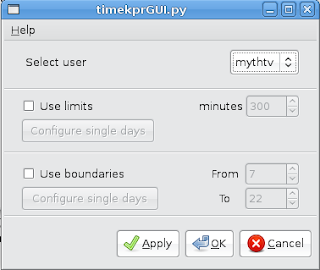
To Un-Restrict a user, select the username, uncheck both "Use limits" and "Use boundaries" and click Apply/OK
With those ideas in mind I came up with this:
timekpr - (Modified - this is not the creator's original version)
What timekpr does is watch for instances of the session manager, keep a running tally of the time they are running, and logs kills it when time is up. Several libnotify alerts let the user know when thier time is running out. 
IMPORTANT UPDATE - NEW VERSION
This is a new version and needs a new config file for each userername located at:
/var/lib/timekpr/username
To use the new script, login to a terminal with root permissions and delete the old script AND all the old user configuration files and REBOOT your system. Then install the new script and create all new username config files. Then paste the settings (as shown below) into the newly created confg files. Reboot your system again, and the script should work it's magic provided you have added it to the: /etc/rc.local file as instructed above. If you don't create a configuration file for any user, they will have unrestricted access.
Each of the username files should have the following format:
limit=( 345 345 345 345 170 345 345 )
from=( 7 7 7 7 7 7 7 )
to=( 22 22 22 22 23 22 22 )
Each of the seven numbers on a line stands for the value of that certain day of week
(SUN--MON--TUE--WED--THR--FRI--SAT)
An unrestricted user does not need this file, so don't make one for yourself.
To start the script without rebooting, open up a terminal session and type:
$ bash /usr/local/bin/timekpr.sh
You need to be sure that libnotify is installed. Type the following code in a terminal session.
$ sudo apt-get install libnotify-bin
Here are the scripts - Notice the 2 extra scripts for added usefulness.
timekpr.txt
This is a modified version of the original. It lets you set additional time controls that prevent the user from being able to login outside of the allowable limits (7 & 22 by default) of 0700 & 2200 hours.
addtime.txt
This is a "rewards" script to give additional time to your well behaved little users. This script (when ran) is only effective for the day you run it. Run this script in the following format:
sudo addtime.sh
This does not expand the login hours regular boundaries of 0700-2200 hours.
extendlimits.txt
This script will allow you to set user privileges to extend beyond the default login boundaries of 0700 to 2200 hours. This is only effective for one session and will reset when the timekpr.sh script is next executed. To run this script, use the following format:
sudo extendlimits.sh
Open the terminal and type;
cd ~/DesktopNOTE: It's important that you exit the installer window and do not press the installers play button. It will course permission problems for Wolfenstein.
Get any missing dependencies

